EV Integrations

The future is electric and asks for integration
Voor informatie over het abonnement ga naar de Nederlandse MyCharger site
About
Open up and connect
Good to see you are using or considering charge solutions from EdgeTech. On the next pages we will help you with integrating the WiFi-module in your environment. As a first step we demontrate integration into HomeAssisant. Because the integration is based upon a Rest API you will quickly understand how to integrate with other smart energy or smart home platforms.
Overview of the steps
For this integration we will follow the subsquent steps:
1. add the services to the central configuration.yaml
2. define a new dashboard
3. customize the elements
For Home Assistant you can add and control many things via the central configuration.yaml, see the Home Assisant pages.
Configuration
The configuration.yaml
At this point we assume you are familiar with the basic concepts of Home Assisant. If not look at the getting started pages of Home Assisant. The configuration.yaml is the base for many services of your Home Assistant installation. You can edit it via the browser. In our case we need to add two blocks:1. switch: like the name says, here you can define the switch services.
2. rest: here you can define the REST endpoints for your sensors. You can refere to them via unique IDsImportant: if you already have a switch and rest block you must add the new lines to the existing switch and rest blocks. Multiple "switch:" and "rest:" statements are not allowed in your YAML.On the next pages we will show some screenshots, but don't worry as you can download the line from our mobile app or the web, ready to use!
Example Configuration.yaml: switch-block
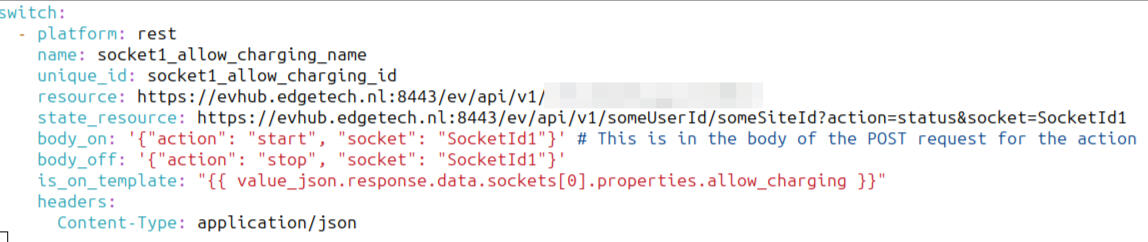
Example Configuration.yaml: rest-block

Configuration
adding a dashboard and view
Now we are ready to use the services from main the configuration.yaml file.1. Follow the instruction from Home Assistant for adding a new dashboard.
2. Then add a view to the new dashboard
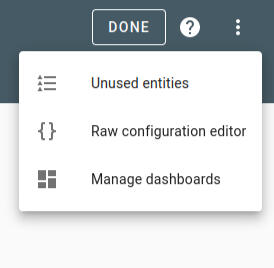
3. Open in the top right corner "Edit dashboard
4. Again in the top right corner open "raw configuration editor"
5. Paste the configuration lines you downloaded via the app or web
6. See the next step
MyCharger > Settings > Expert > REST API


Download via the web
You can also download the files via the web. For this you must have the ID you received via the mobile app. Download it from the following URL:
https://evhub.edgetech.nl:8443/ev/api/v1/<ID from the app>/<QR-WiFi-module>?action=download&file=ha-configuration
https://evhub.edgetech.nl:8443/ev/api/v1/<ID from the app>/<QR-WiFi-module>?action=download&file=ha-dashboard
About EdgeTech
Dutch Innovation
EdgeTech is a Dutch company that develops smart EV charging solutions. They are high quality products and easy to integrate. See the EdgeTech website for more information.
Contact
Send us a message
Usually we respond within 1 business day
© EdgeTech. All rights reserved.